SUPPORT CENTER

Understand every signal, step by step.

A guide to what EntiScan finds in the tab you authorized. You do not need to know SEO to get started.

Your first look at the page

Overview

What it is Summarizes the page you authorized and the audit that has finished.

What EntiScan shows
Page identity, audit status, finding counts by level, and a link to the action plan.
Why it matters
It helps you get oriented before opening each tab and see what the review found.
How to interpret it
Levels help prioritize findings. They are not a quality score or a prediction of search results.

Simple example If you see one warning and three informational suggestions, open the details to see the specific element EntiScan observed.
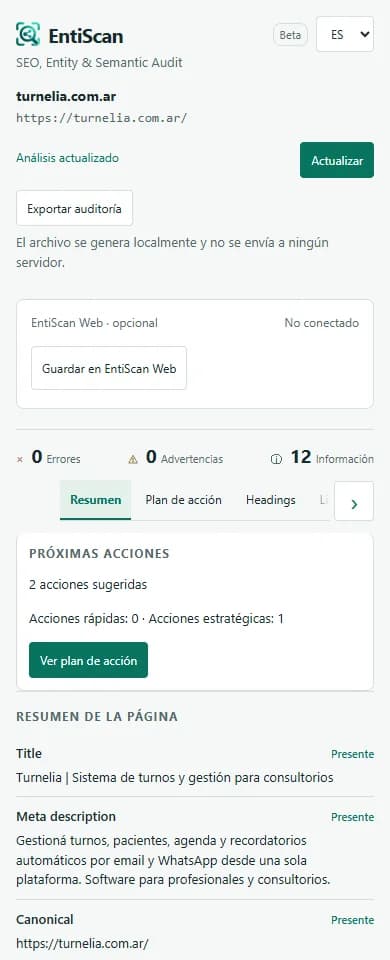
Real capture of EntiScan 0.2.0 beta Overview tab, showing findings from an example page.
Real capture · extension 0.2.0 beta

Evidence-backed suggestions

Action plan

What it is Organizes recommendations generated from findings in this audit.

What EntiScan shows
A suggested action, its priority, and the signal behind it. Some tasks are quick; others need a broader review.
Why it matters
It turns technical findings into next steps you can weigh against the page’s purpose.
How to interpret it
Open each recommendation and check the related evidence. EntiScan does not edit the page or apply changes for you.

Simple example “Add a description” refers to this URL’s metadata; first decide whether the page needs its own description.

From evidence to a decision

  1. FindingObserved signal
  2. SuggestionWhat to review
  3. Your judgmentWhat to do next
Illustrative example · the plan does not change the page.

The order of page headings

Headings

What it is Lists the HTML headings found in the document, from H1 through H6.

What EntiScan shows
Heading text, hierarchy, and counts by level. It can also surface empty headings or level jumps.
Why it matters
A clear structure helps people and assistive technologies move through the page by section.
How to interpret it
Read the outline from top to bottom. An H3 under an H1 with no H2 in between may be worth checking, but is not automatically an error.

Simple example H1 “Plant care guide” → H2 “Watering” → H3 “How often to water” shows a section within a section.

Example heading hierarchy

  1. H1 Plant care guide
  2. H2 Watering
  3. H3 How often to water

Illustrative example · actual content depends on the page.

Illustrative example · does not represent real audit results.

Alternative text and image signals

Images

What it is Inspects the HTML images found on the current page.

What EntiScan shows
Image URL, alt attribute, declared dimensions, and available element details such as lazy loading.
Why it matters
Useful alternative text communicates an image’s purpose when it cannot be seen or when using a screen reader.
How to interpret it
An empty alt can be right for a decorative image. Missing alt text on an informative image deserves a human review.

Simple example For a recipe photo, “freshly baked apple tart” says more than “photo.”

Purpose shapes alternative text

Informative

alt="Freshly baked apple tart"

Decorative

alt=""

May be appropriate if it adds no information.
Illustrative example · assess the image in context.

Structured information in the page

Structured data

What it is Reads JSON-LD blocks in the document and checks their structure and local references.

What EntiScan shows
Types, properties, entities, and relationships it could interpret, plus whether parsing was partial or errors were found.
Why it matters
Structured markup expresses page data for systems that process it, provided it matches the visible content.
How to interpret it
Treat it as local evidence. A valid parse does not certify rich results or compliance with a search engine’s policies.

Simple example An Organization block can name “Southside Books” and link its website with a url property.

Simplified JSON-LD snippet

{
  "@type": "Organization",
            "name": "Southside Books",
            "url": "https://example.test"
}

Illustrative sample, not a product capture.

Illustrative example · does not represent real audit results.

Observable directives and setup

Technical

What it is Groups technical signals available in the audited page’s DOM.

What EntiScan shows
Canonical, language, robots, viewport, charset, alternates, and other directives detectable in the document.
Why it matters
These signals help explain how a URL identifies and configures itself, including its declared limits.
How to interpret it
Check each value against the URL and page purpose. The extension does not verify HTTP headers, server status, or actual indexing.

Simple example A canonical from /article?utm_source=email to /article can indicate the preferred URL.

Three signals in the document

canonical
Declared preferred URL
lang
Document language
robots
Observed directives
Illustrative example · HTTP headers are not included.

Observed names, types, and references

Entities

What it is Organizes entity candidates and references found in the page’s structured data.

What EntiScan shows
Available names, types, identifiers, and local relationships, including possible duplicates or conflicts to inspect.
Why it matters
It helps you check whether references describe people, organizations, products, or other concepts consistently.
How to interpret it
These are observations from the document. They do not confirm recognition by Google or another service, or inclusion in a Knowledge Graph.

Simple example Two objects with the same @id but different names may conflict, or may need more context.

A local relationship in a structured block

@typeOrganization
nameSouthside Books
urlejemplo.test
Illustrative example · does not confirm external recognition.

Signals compared with each other

Coherence

What it is Looks for relationships or differences across content, metadata, structured data, and entities.

What EntiScan shows
Findings and the evidence used to compare related fields on this page.
Why it matters
A page describes itself in several places; differences can make its offer or identity less clear.
How to interpret it
Review values together and consider context. A difference may be intentional; this tab does not assign an overall score.

Simple example The title names “Southside Books” while the markup gives the organization another name: check which represents the site.

Compare the same detail across signals

TitleSouthside Books
Organization nameSouthside Books
og:titleGift guide
Illustrative example · a difference is a reason to check the context.

MORE HELP

Installation, permissions, and connection

Installation

Install EntiScan from its official listing and pin the icon to Chrome’s toolbar. The verified public version is 0.1.0; it can analyze compatible pages without an account.

Install EntiScan

Optional connection requires beta 0.2.0 or later. If you received that beta, follow the included instructions and keep the folder where you loaded it.

Compatible pages

EntiScan analyzes the active public HTTP or HTTPS page you authorized. It does not crawl a whole site or schedule audits.

Chrome restricts internal pages such as chrome://, protected pages, the Chrome Web Store, and local file:// URLs. Avoid private or sensitive pages.

Save an audit to EntiScan Web

  1. Connect the extension from EntiScan Web and check that the code matches.
  2. Return to the panel and view your active projects.
  3. Choose a destination and review the URL, date, and data to be saved.
  4. Check the confirmation box and select Confirm and save audit.

Connecting does not send results. Every audit requires explicit review and confirmation. The token expires after 30 days and can be revoked from Settings → Connected Extensions.

Common issues

Why does the panel ask me to authorize a page?

Return to the public tab you want to analyze and select the EntiScan icon. Chrome grants EntiScan temporary access to that tab for local analysis; you do not need to grant access to every site.

Can I connect the Chrome Web Store version to EntiScan Web?

The public 0.1.0 listing provides local analysis. Optional connection requires 0.2.0 or later; connecting does not send audits.

My connection code expired or does not match

The request expires after 10 minutes. Cancel it and start a new connection from the panel. Authorize only when the code matches in both the extension and EntiScan Web.

Why can’t I see a comparison?

History compares two audits of the same page within a project. The demo lets you explore the flow with sample data.

Export a report

Create Markdown, CSV, or JSON locally. Review the file before sharing it: it may include the URL and observed page data.

Privacy

Analysis happens in your browser. Saving to Web is optional and requires confirmation.

Read the privacy policy

Need a hand?

Email hernanluque@gmail.com. Include your EntiScan and Chrome versions, the step where the issue occurred, and the message you see. Do not send passwords, tokens, or private data.